Card Competitions
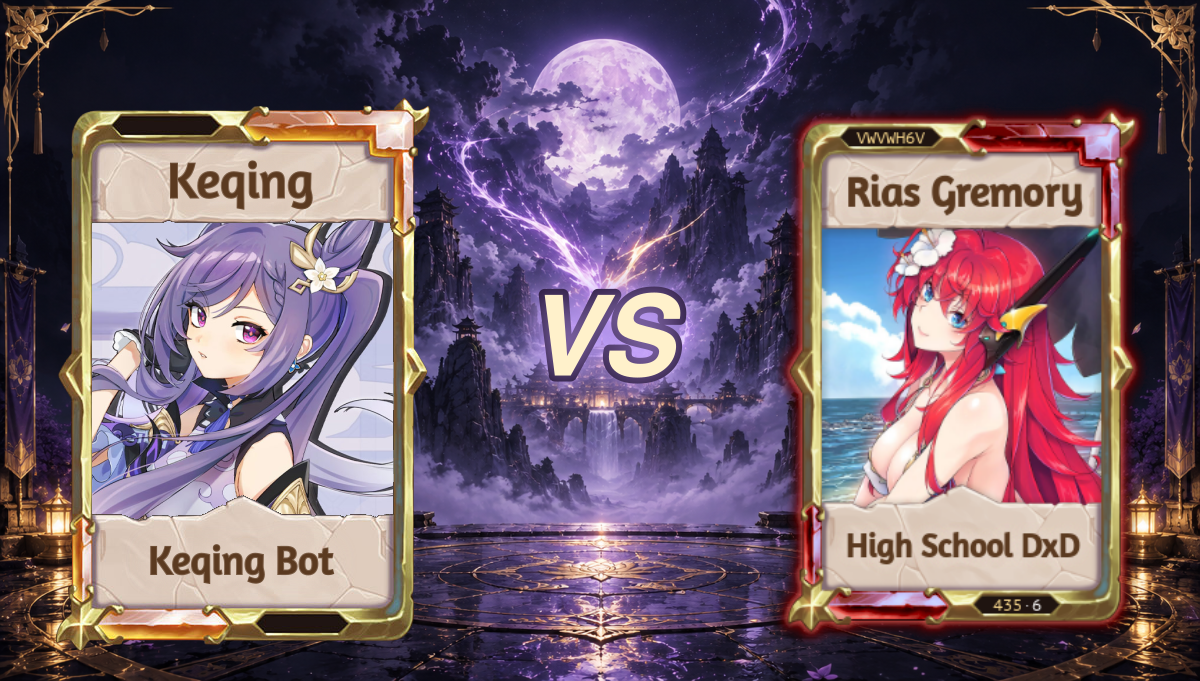
Create interactive card comparison polls with multiple game modes. Premium members can customize backgrounds for enhanced visual appeal.

Create engaging card comparison polls with support for 1v1 battles, 2v2 team competitions, and bulk comparisons. Configure settings through your server's dashboard for seamless competition management.
Setup
- 1
Access Card Competition Settings
Navigate to your server dashboard and go to Settings > Card Competitions to access the configuration panel.
- 2
Configure Host Role Requirements
In the Access Control section, select which role can manage card competitions. For example, you might create and assign a
CompHostrole.You must set a CardComp Host Role before using competition commands. Only users with this role can create competitions.
- 3
Set Competition Duration
In the Timing Settings section, configure the default duration for competitions (in hours). The default is 24 hours, but you can adjust this to fit your server's needs.
- 4
Customize Appearance (Premium)
If you have premium access, you can upload custom background images in the Appearance Settings section to make your competitions unique.
Competition Modes
The cardcomp command supports three different competition modes:
1v1 Mode (Classic)
- Command:
acardcomp 1v1oracardcomp - Cards Required: 2 cards
- Layout: Side-by-side comparison
- Best For: Classic head-to-head battles
2v2 Mode (Team Battle)
- Command:
acardcomp 2v2 - Cards Required: 4 cards (2 per team)
- Layout: Team formation display
- Best For: Team-based competitions
Bulk Mode (Grid Comparison)
- Command:
acardcomp bulk - Cards Required: 3-10 cards
- Layout: Dynamic grid layout
- Best For: Large-scale comparisons and tournaments
Usage Methods
There are two ways to create card competitions:
Method 1: Reply to Karuta Embeds
- 1
Run Karuta Commands
First, use Karuta commands to display the cards you want to compare:
- Use
k!ci <card_code>for card details - Use
k!v <character>for character views
- Use
- 2
Reply with Competition Command
Reply to the Karuta message with your desired competition mode:
acardcomp 1v1 acardcomp 2v2 acardcomp bulkThe bot will automatically detect and use the cards from the Karuta embeds. For 1v1 mode with a single card, you'll be prompted to provide the second card.
Method 2: Sequential Collection
- 1
Start Competition Mode
Run the competition command with your desired mode:
acardcomp 1v1 # Classic 1v1 acardcomp 2v2 # Team battle acardcomp bulk # Grid comparison - 2
Provide Cards
The bot will prompt you to run
k!cicommands for the required number of cards:- 1v1: 2 cards exactly
- 2v2: 4 cards exactly
- Bulk: 3-10 cards (you can type 'done' or 'stop' to finish early with minimum 3 cards)
You have 2 minutes to provide all required cards. The bot will collect them automatically as you run the Karuta commands.
- 3
Competition Generation
Once all cards are collected, the bot will automatically generate the comparison image and create a Discord poll in your specified channel.
Command Examples
Basic 1v1 Competition
acardcomp 1v1
Then run k!ci commands for 2 cards.
Team Battle
acardcomp 2v2
Then run k!ci commands for 4 cards (first 2 cards become Team 1, last 2 cards become Team 2).
Bulk Comparison
acardcomp bulk
Then run k!ci commands for 3-10 cards. Type done when you want to finish early (minimum 3 cards required).
Reply Method
k!ci ABC123
k!ci DEF456
Then reply to the Karuta message:
acardcomp 1v1
Channel Specification
You can specify a different channel for the competition by mentioning it:
acardcomp 1v1 #competition-channel
This allows you to set up competitions in private channels while posting the final poll publicly.
Configuration Options
Duration Settings
The default competition duration is 24 hours, but you can customize this in the Timing Settings section of your dashboard. Simply adjust the "Default Duration" field to set your preferred competition length.

Access Control
Configure which roles can host competitions through the Access Control section. This ensures only trusted members can create and manage card competitions in your server.

⭐PREMIUM FEATURES
Every server can use the card competition feature, but premium servers get exclusive customization options:
Custom Backgrounds
Premium servers can upload custom background images through the Appearance Settings section in the dashboard. This removes the default VS text and Keqing branding, giving you complete visual control over your competitions.
Recommended Image Specifications:
- 1v1 Mode: 820×590 pixels
- 2v2 Mode: 1200×600 pixels
- Bulk Mode: Dynamic sizing based on card count
To upload a custom background:
- Navigate to Settings > Card Competitions > Appearance Settings
- Click on the Competition Background Image section
- Upload your custom image
- Your new background will be applied to all future competitions
To revert to the default background, simply click the "Reset to default" button in the same section.

Dashboard Access
Access your server's card competition settings through the web dashboard at your server's settings panel. All configuration changes are applied instantly and don't require bot restarts.
Aliases
The acardcomp command has the following aliases for convenience:
acrcacreatecardcomp
Permissions Required
The bot needs the following permissions to function properly:
- Read Message History - To access referenced messages
- Embed Links - To send competition embeds
- Attach Files - To upload competition images